
'%20stroke='none'%20/%3e%3cpath%20fill-rule='evenodd'%20clip-rule='evenodd'%20d='M9.59162%2022.7357C9.49492%2022.6109%209.49492%2021.4986%209.59162%2019.399C8.55572%2019.4347%207.90122%2019.3628%207.62812%2019.1833C7.21852%2018.9139%206.80842%2018.0833%206.44457%2017.4979C6.08072%2016.9125%205.27312%2016.8199%204.94702%2016.6891C4.62091%2016.5582%204.53905%2016.0247%205.84562%2016.4282C7.15222%2016.8316%207.21592%2017.9303%207.62812%2018.1872C8.04032%2018.4441%209.02572%2018.3317%209.47242%2018.1259C9.91907%2017.9201%209.88622%2017.1538%209.96587%2016.8503C10.0666%2016.5669%209.71162%2016.5041%209.70382%2016.5018C9.26777%2016.5018%206.97697%2016.0036%206.34772%2013.7852C5.71852%2011.5669%206.52907%2010.117%206.96147%209.49369C7.24972%209.07814%207.22422%208.19254%206.88497%206.83679C8.11677%206.67939%209.06732%207.06709%209.73672%207.99999C9.73737%208.00534%2010.6143%207.47854%2012.0001%207.47854C13.386%207.47854%2013.8777%207.90764%2014.2571%207.99999C14.6365%208.09234%2014.94%206.36699%2017.2834%206.83679C16.7942%207.79839%2016.3844%208.99999%2016.6972%209.49369C17.0099%209.98739%2018.2372%2011.5573%2017.4833%2013.7852C16.9807%2015.2706%2015.9927%2016.1761%2014.5192%2016.5018C14.3502%2016.5557%2014.2658%2016.6427%2014.2658%2016.7627C14.2658%2016.9427%2014.4942%2016.9624%2014.8233%2017.8058C15.0426%2018.368%2015.0585%2019.9739%2014.8708%2022.6234C14.3953%2022.7445%2014.0254%2022.8257%2013.7611%2022.8673C13.2924%2022.9409%2012.7835%2022.9822%2012.2834%2022.9982C11.7834%2023.0141%2011.6098%2023.0123%2010.9185%2022.948C10.4577%2022.9051%2010.0154%2022.8343%209.59162%2022.7357Z'%20fill='rgba(0,0,0,0.7)'%20stroke='none'%20/%3e%3c/svg%3e)
Getting started with SteamDeck development
Project: SteamDeck
Introduction
I'm aiming at developing a simple game for the SteamDeck. I've started out by just proving it is possible to get something running on the ‘deck, utilising its built-in controls.
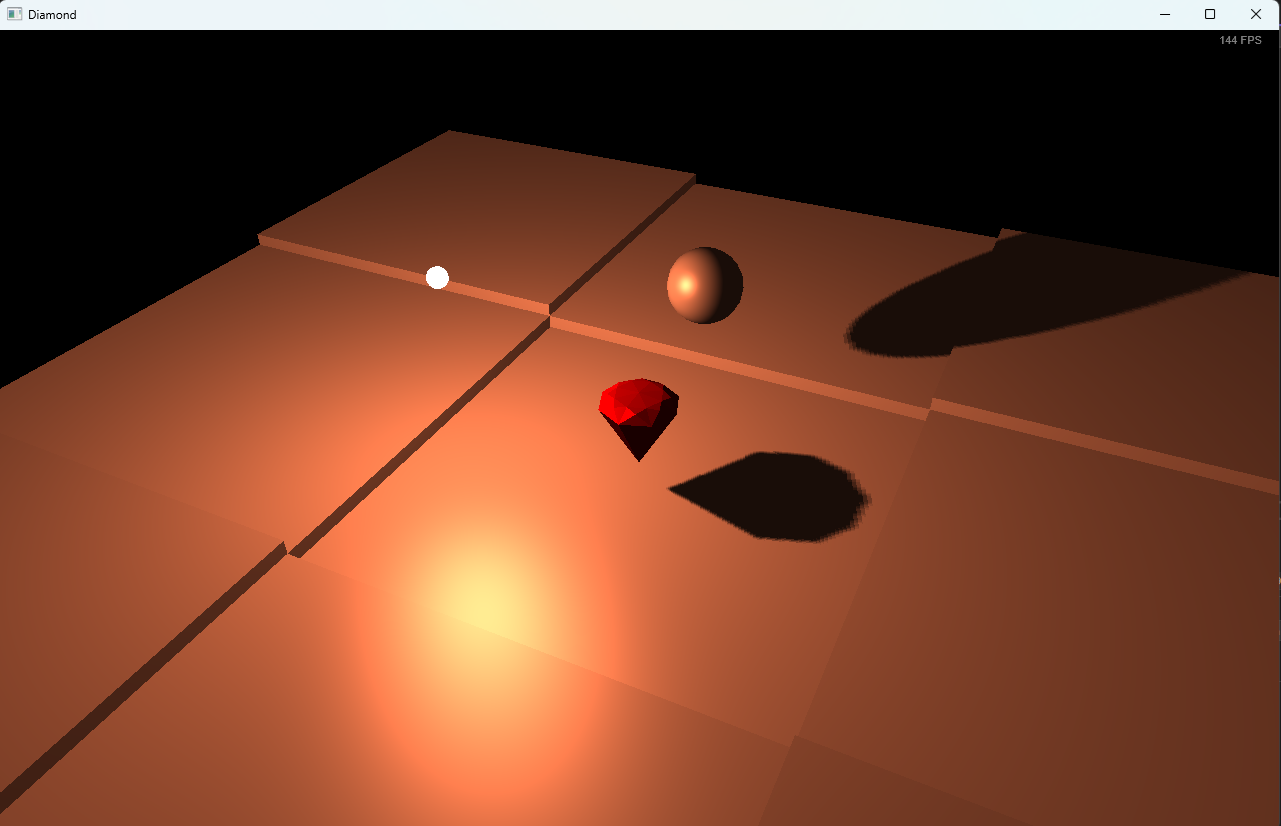
To start with I've created a simple OpenGL project that rotates a diamond with a single point light, casting a shadow onto a 2D plane below:
Setting up the code
The open-gl basics of this small demo are founded on the work of Joey de Vries, on his excellent website. All my development has been done on Windows, using Visual Studio 2022. A lot of the code will work on Mac and Linux, but I have not yet gotten around to testing those platforms.
First off, clone or otherwise download the code from the repo where it lives. Then either follow the first pages from the learnopengl website to install glad, GLFW and glm, or follow these steps:
Installing Prequisites
GLFW is a windowing library to use with OpenGL. It deals with all platform-specific windowing and input code. Download it here.
You can download pre-built libraries or the source code and cmake it. cmake can be downloaded from here and build GLFW from powershell by typing cmake . whilst in its directory.
However, using the UI tool to general a cmake configuration failed for me - possibly due to using VS 2022 and not 2019. No matter - the configuration included in GLFW worked fine.
Once you've ran cmake, open the GLFW .sln file and build the project.
Move the library files from glfw-<version>\src\debug to a library folder you can point the VS project at. Move the include files to somewhere nearby you can point the VS project at too.
The Diamond project already has a dependency on glfw.lib in its 'additional dependencies', however it won't be able to find it until you tell it where you put it - via 'project settings' => 'VC++ directories' => 'Library directories'.
Point the project at the include files via 'project settings' => 'VC++ directories' => 'Include directories'.
Next you will need GLAD - an interface to opengl. This was generated here and exists as the glad.c file inside the solution.
I am using OpenGl 4.2, Core, for C++ - however if you want to use a different version of OpenGL, you will need to regenerate this.
The Open GL Maths library will need downloading from here, the header files need to be added to the include file, ensuring it maintains the directory structure glm/ - do not copy the header files out of this structure as this is how they are referenced.
Finally, download the Steam SDK from Steam - you will need to be registered with Steam to do this. Also recommended is downloading the reference code - the SteamWorks Example application SpaceWar.
The app SpaceWar has app-id 480, and developers are allowed to re-use this id without paying for an id of their own - you can do this before publication if that is your intention.
Copy the header files to your include directory that you previously set up the project to reference, maintaining the /steam directory structure.
Also you will need to add the steam_api64.dll to sit alongside your source code.
Post-build events will copy all shader files (*.glsl), the steam_api64 dll, the steam_appid file and all VDF files (SteamInput files) to the debug or release directory.
The IGA file (see here for more information), game_actions_480.vdf, needs to be stored at C:\Program Files (x86)\Steam\Controller_Config\ (create that last directory if it is not there already).
Running the code
Once all this is set up, you should run it locally on your computer. Ensure you are targeting debug/x64 and run the program. The diamond will stay green if you have no controller plugged in, or turn a beautiful red colour if your controller is found. I have an Xbox controller, and that is what is configured for the app’. You may need to reconfigure the controls for a different controller.The rendering is simple Phong shading, there is no Phyics-Based Rendering yet. Ultimately I would like the diamond to be scratched plastic, but that would (probably) involve textures and I want it all to be self-created for the moment. An actual translucent diamond would be amazing, and maybe I’ll revisit it someday, but for now I wanted to keep the shadows simple.
Controls are configured for the left joystick to look around, the right joystick to move the camera. Pressing 'A' currently is configured for fire, 'B' for pause and right bumper for accelerate. These are the controls to be used ultimately in the demo game, however for now they are mapped like this:
- Fire: lock camera on diamond
- Pause: Show depth map from light's point of view
- Accelerate: Show Steam control binding menu
When the camera is locked, it can be unlocked by pressing fire again. During lock, the left joystick rotates the camera around the diamond, the right one rotates the light around the diamond (and alters it’s y-coordinate).
Note also that ASDW keys are configured to move around, with the CF keys moving vertically.
Running on the SteamDeck
First, find the SpaceWar app in the Steam Library. Install and run it on your 'deck.
To run your code, the windows debug runtime will need to be in your debug folder, before you deploy to the 'deck. Details on this can be found on the Steam API section of 'Bundling the Windows runtime'
Using the SteamOs DevKit client, connect to your Steamdeck and select 'Title Upload'. Set local folder to your x64Debug folder, type the start command of 'diamond.exe', and tick 'This title requires Steam Play'. After uploading you should be able to run it from 'Non-steam' games.
If the diamond does not turn red from green, it means that it has failed to connect properly to the controller via SteamInput. This seems to happen on first install - it is possibly something to do with sharing the App Id with SpaceWar, or the cloud sync on the vdf files (that configure the control bindings). Press the steam button and exit the app and retry - though sometimes just pressing the steam button and hit 'B' to go back makes it all work. Steam Input can be problematic - more on that in an upcoming article on getting SteamInput working!
The next article is About the Diamond Demo Code.
Further note: the issues with the Controller were found to be due to the incorrect use of an Action Manifest file. This has been commented out - though when first running an app on the 'deck, it might be necessary to uncomment it to let Steam know which files to use, and then re-comment it to get it working every time without pressing the Steam button. The line in question is at the end of EngineInput::Initialise(). The manifest files are really for when you have your own app-id.